
Passive Screen Capture Tools for Work: Boom
Sara
Author
Introduction
Passive screen capture tools for work capture work in progress automatically, so teams can document progress without forcing manual recording. With Boom, that means turning everyday screen activity into async updates that can be edited, captioned, and approved before sharing, which is useful when you want to skip the meeting and still show real progress. This page explains how passive capture works, when it should start, how privacy and permissions are handled, and how engineering, design, and ops teams can use it in practice.
What is passive screen capture for work?
Passive screen capture for work is a workflow that records relevant screen activity without making someone stop and hit record every time they want to share progress. The value is simple: capture work in progress automatically, then turn that raw activity into a short update people can review on their own time.
That intent matches how Boom is positioned on its site, as a free AI screen recorder and video editor that helps teams skip the meeting and share async updates on any device, according to boomshare.ai. Boom also supports auto-edits, captions, and 50+ language voice dubbing, which makes the captured work easier to polish before it is shared. In practice, passive capture is best for teams that want proof of progress, clearer handoffs, and fewer status calls.
For searchers comparing passive screen capture tools for work, the key distinction is whether the tool only records on demand or whether it can start from a trigger, then help users approve the final clip. That approval step matters because passive capture should reduce friction without removing control.
Key Points
- Passive capture reduces the need to manually start every recording.
- Boom is positioned as a free AI screen recorder and video editor, according to boomshare.ai.
- Auto-edits, captions, and 50+ language dubbing support faster async sharing.
How Boom captures work in progress automatically
Boom works best when capture is tied to a clear trigger, not to a habit users have to remember. That is the core of passive capture: the system notices a work event, records the relevant moment, and then helps the user approve the final clip before it goes out.
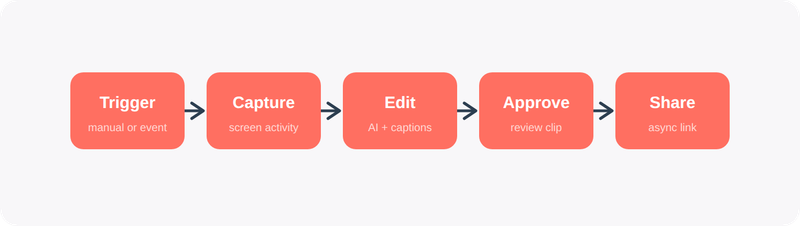
A simple way to think about the flow is: trigger, capture, edit, approve, share. The trigger can be manual, scheduled, or caused by a user action, and the clip can then be cleaned up with AI edits and captions before the final review. Boom’s existing product positioning around async video, screen recording, and AI editing makes it a natural fit for this workflow, according to boomshare.ai and its related use-case pages.
This matters for teams that need a lightweight way to document progress. Instead of asking engineers, designers, or operations staff to remember a separate recording task, passive capture lets the update happen around the work itself. That is what makes it feel automatic, even when the final approval still stays in the user’s hands.
Key Points
- The ideal passive capture flow is trigger, capture, edit, approve, share.
- Capture can be manual, scheduled, or triggered by user action.
- AI edits and captions help turn raw footage into a usable update.
Architecture diagram for passive capture
The simplest architecture for passive screen capture tools for work keeps capture, editing, and approval separate so teams stay in control.
Trigger event, such as a manual start, a scheduled window, or a user action, starts the capture layer. Boom then records the relevant screen activity and applies AI-assisted edits, captions, and optional dubbing. The final clip moves into an approval step, where the user reviews it, makes sure the context is right, and then shares it asynchronously.
In text form, the architecture looks like this:
Trigger condition -> Screen capture starts automatically -> AI edits and captions are applied -> User reviews and approves final clip -> Clip is shared async
That structure is useful because it shows where automation should stop. Capture should be passive, but publishing should stay deliberate. For teams that care about trust and clarity, the approval layer is what keeps passive capture from becoming noisy or confusing.
Key Points
- Trigger conditions should start capture, not publishing.
- AI edits happen before approval, not after sharing.
- The final clip should always pass through a user review step.
Privacy and permissions: when capture is manual, scheduled, or triggered
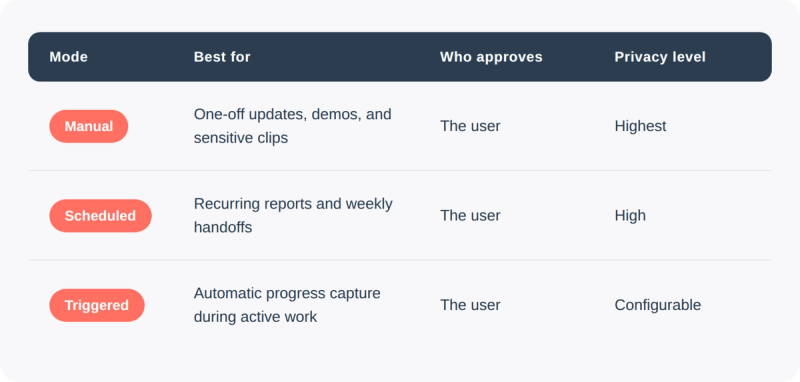
Privacy and permissions should define when capture happens, what gets recorded, and who can approve the result. For passive screen capture, that means giving teams clear modes instead of one always-on behavior.
Manual capture is best when a user wants full control over a specific update or demo. Scheduled capture works when a team wants a recurring workflow, such as a weekly progress recap or a recurring handoff. Triggered capture is the most passive option, and it should only start when a user action or approved event begins the recording.
For a work setting, the safest pattern is to keep capture scoped to the task at hand, then let the user review the clip before it leaves the workspace. That fits Boom’s async communication model, where the goal is to replace meetings with shareable updates, according to boomshare.ai. It also gives teams a cleaner way to separate private work from shareable progress, which is essential for engineering, design, and ops workflows.
Key Points
- Manual capture gives the most control.
- Scheduled capture is best for repeatable updates.
- Triggered capture should start only from approved user actions or events.
Where passive capture fits in engineering, design, and ops
Passive capture is most useful when the work itself is visual and the update is better shown than described. Engineering, design, and operations teams all benefit because each one spends time proving progress, explaining decisions, and handing off context.
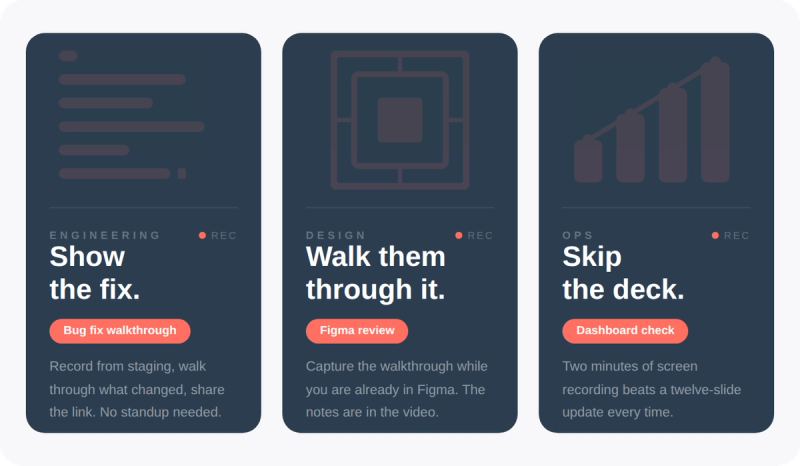
For engineering, passive capture can document a bug fix, a pull request walkthrough, or a staging environment change without forcing a separate recording session. For design, it can capture a Figma review, a prototype iteration, or a layout change while the designer is already in flow. For ops, it can show a process update, a dashboard check, or a system change that needs to be shared across the team.
Boom’s broader async video positioning supports those use cases, especially when the output needs captions or dubbing for distributed teams, according to boomshare.ai. The practical benefit is not just recording less manually, it is making progress visible fast enough that teams can move without waiting for a meeting.
Key Points
- Engineering teams can use passive capture for bug fixes, PR walkthroughs, and staging changes.
- Design teams can use it for prototype reviews and iterative feedback.
- Ops teams can use it for process updates and system handoffs.
A simple workflow for teams that want async updates
The easiest rollout is to start with one repeatable workflow and keep the approval step visible. That way, passive capture feels helpful instead of intrusive.
Step 1: choose a trigger, such as a manual start for one-off updates, a scheduled window for recurring reports, or a user action for event-based capture. Step 2: let Boom capture the screen activity and apply AI edits, captions, and dubbing where needed. Step 3: review the clip, trim the parts that do not add value, and approve it. Step 4: share the final video asynchronously so teammates can watch when they are ready.
This is the kind of workflow Boom is built to support as a free AI screen recorder and video editor, according to boomshare.ai. It is also a strong fit for teams that want to replace status meetings with durable updates people can search, replay, and reuse later.
Key Points
- Start with one repeatable workflow before expanding passive capture across the team.
- Keep approval visible so users stay in control of what gets shared.
- Use async sharing to replace status meetings with durable updates.
Passive screen capture tools for work: how to choose the right fit
The best passive screen capture tools for work are the ones that reduce friction without removing control. That means looking for automatic capture triggers, clear permission settings, AI-assisted cleanup, and a simple approval flow before sharing.
Boom fits that pattern because it combines screen recording, editing, captions, and multilingual dubbing in one async workflow, according to boomshare.ai. That makes it especially useful when teams need to capture work in progress automatically and then turn it into something polished enough to share internally or externally.
A good fit should also support different capture modes. Manual capture is still useful for planned demos, scheduled capture works for recurring updates, and triggered capture is best when the goal is to document work as it happens. The right tool should make all three feel consistent, while keeping privacy and approval at the center.
Key Points
- Look for automatic triggers, privacy controls, AI cleanup, and approval flows.
- Boom combines recording, editing, captions, and dubbing in one workflow.
- Manual, scheduled, and triggered capture should all be available in a clear system.
FAQ
What does passive screen capture mean for work?
Passive screen capture means the tool can start recording from a trigger instead of requiring someone to manually begin every capture. It is designed to document work in progress automatically and turn it into a shareable update.
How is passive capture different from normal screen recording?
Normal screen recording usually depends on a person remembering to press record. Passive capture is tied to a trigger, a schedule, or a user action, so the workflow is easier to repeat.
Can Boom be used for engineering updates?
Yes, Boom is a strong fit for engineering walkthroughs, bug fixes, and progress updates because it is built for async screen recording and editing, according to boomshare.ai. Captions and dubbing also help when teams are distributed.
Is passive screen capture private?
It can be, if the workflow is designed with clear permissions and approval steps. The safest setup is to keep capture scoped, let the user review the clip, and only share after approval.
When should capture be manual instead of automatic?
Manual capture is best when the update is sensitive, one-off, or highly specific. It gives the user the most control and is often the right choice for demos, customer-facing clips, or anything that should not start from a trigger.
Key Points
- Passive capture starts from a trigger, schedule, or action instead of a manual record button.
- Boom supports async screen recording and editing, according to boomshare.ai.
- Manual capture is best for sensitive or one-off updates.
Conclusion
Passive screen capture works best when it helps people show progress without adding another task to their day. That is why we built Boom around async updates, automatic capture workflows, and simple approval before sharing. If your team wants to capture work in progress automatically, keep privacy under control, and move faster without more meetings, Boom gives you a practical way to do it.
Key Takeaways
- Passive screen capture tools for work capture work in progress automatically instead of relying on manual recording.
- Boom is positioned as a free AI screen recorder and video editor, according to boomshare.ai.
- The cleanest passive capture flow is trigger, capture, edit, approve, share.
- Privacy should be handled with clear manual, scheduled, and triggered capture modes.
- Engineering, design, and ops teams can use passive capture to replace status meetings with async updates.
Related Topics
- Async video updates for remote teams
- How to replace status meetings with screen recordings
- Best screen recording workflows for reporting
- AI captions and dubbing for internal communication
- Top async video features for freelancers