
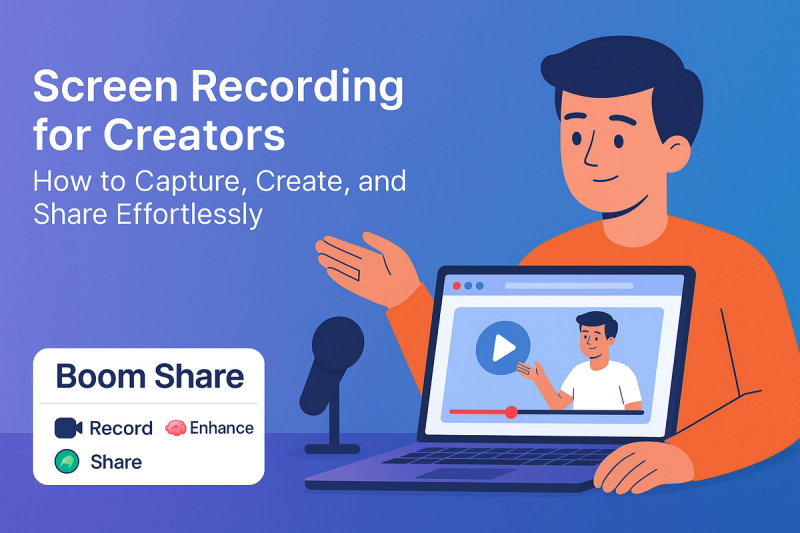
Screen Recording for Creators: How to Capture, Create, and Share Effortlessly
Daniel M
Author
TL;DR
Creators today don’t just talk about ideas — they show them. Whether you’re making tutorials, product demos, YouTube content, or online courses, screen recording for creators has become one of the most powerful storytelling tools.
With Boom Share, you can record your screen, polish your videos with AI, and share instantly — all for free, forever. It’s a lightweight yet powerful screen recorder for content creation, built to help you focus on creativity instead of complexity.
And yes, if you’re wondering how to record screen on Windows, Boom Share has you covered. Just download it, log in, and you’re ready to create.
Why Screen Recording Is a Creator’s Superpower
If you’re a creator, you know that sometimes words just aren’t enough. A quick video of your screen — explaining a concept, showing a design, or walking through a workflow — can make your message 10x clearer.
Screen recording helps creators:
- Build authentic connections with their audience
- Teach and explain visually, not verbally
- Show their creative process in real time
- Repurpose clips for YouTube, Instagram, or courses
- Collaborate easily with clients or team members
The best part? You don’t need expensive gear or editing software anymore. A good screen recorder for content creation like Boom Share gives you all the tools you need — for free.
The New Era of Screen Recording for Creators
Screen recording used to be a technical hassle — installing plugins, setting up encoders, converting files.
But creators don’t have time for that.
Modern tools like Boom Share are changing the game by making screen recording fast, intuitive, and AI-powered. You can record, polish, and post in minutes, not hours.
Boom Share’s mission is simple: give every creator the ability to produce professional-quality videos without limitations, watermarks, or subscriptions.
It’s everything you need to go from “recording an idea” to “sharing it with the world.”
Meet Boom Share: Your Free Screen Recorder for Content Creation
Creators, freelancers, and educators around the world are switching to Boom Share because it’s built with one thing in mind — freedom to create without limits.
Here’s why it stands out:
Free Forever: No trial periods, no recording caps, and no paywalls. Unlike Loom’s 5-minute restriction, Boom Share gives you complete freedom to record, edit, and share without worrying about limits.
AI Voiceovers and Script Polishing: Record your video and let Boom Share’s AI instantly enhance your voice. It removes background noise, balances tone, and even polishes your script so your message sounds sharp and professional.
Smart Video Enhancement: Lighting and color correction happen automatically. Boom Share’s AI ensures your screen recordings look bright and professional — even if you’re recording in less-than-perfect lighting.
Works Everywhere: Boom Share is available on both desktop (Windows) and mobile. You can record your tutorials, walkthroughs, or demos from anywhere.
Multi-Language Voice Translation: Reach global audiences effortlessly. Boom Share’s AI voice translation lets you record in your language and automatically convert your voice into another — perfect for multilingual creators.
Instant Sharing: Once your video is ready, Boom Share generates a shareable link. You can drop it into emails, social media, or your website — no downloads or attachments required.
How to Record Screen on Windows (The Easy Way)
If you have been looking for how to screen record your PC and haven’t found a simple process, or paid tools, those days will be over after reading this. But not with Boom Share, it’s quick and easy, no cost to you.
Here’s how to get started:
1. Download Boom Share
Go to the Boom Share site and downloading can be done by visiting the software on Windows. It’s also available on your phone in case you like to record on the go.
2. Sign In to Dashboard
After downloading, sign into your account. You’ll find a tidy, intuitive dashboard.
3. Start Recording Your Screen
Select what you want to record:
- Your entire screen
- A particular window or browser tab
- Your face cam overlay (if you want to include a face cam)
- System or microphone audio
Simply tap "Record," and Boom Share records it for you in crystal clarity.
4. Enhance with AI
When you finish recording, Boom Share’s AI lifts the production adding volume to your video, audio optimizations, auto captioning and visual repackaging where necessary. You can even include A.I.-generated voiceovers or translations on that video.
5. Save and Share Instantly
Once your video is prepared, you’ll locate it in your dashboard. There's a shareable link to be copied and pasted anywhere you'd like.
That’s it! You’ve just learned how to record screen on Windows with Boom Share — no complicated setup, no watermark, no fees.
What Creators Can Do with Screen Recording
If you think screen recording is just for tutorials, think again.
Here’s how creators across industries are using Boom Share to level up their content:
- YouTubers record walkthroughs, gameplay, and editing tutorials.
- Designers show their design process or portfolio work.
- Educators create lessons, lectures, and training videos.
- Founders pitch products and investor updates visually.
- Marketers create explainer videos and social media clips.
Boom Share gives every creator a simple way to turn their skills into content — whether you’re teaching, building, or sharing.
Why Boom Share Works So Well for Creators
Most screen recorders are built for businesses. Boom Share is built for creators.
That means:
- No distractions, just creation.
- No complicated editing software.
- No paywalls blocking your creativity.
Boom Share’s clean design lets you focus on storytelling. The AI does the technical heavy lifting so you can do what you do best — create.
Tips for Better Screen Recording and Content Creation
If you want your videos to look professional and grab people’s attention, preparation is everything:
- Begin by sketching out a rough outline before going in to record. That’ll help you remain focused and in control.
- Speak as you would if explaining something to a friend. Genuine always does better than canned.
- Ensure your video content is short and engaging, roughly three to five minutes in length.
- Leverage Boom Share’s AI captions to create more accessible and comprehensible content.
- Record in a quiet place so your audio stays clean and clear.
- And don’t forget, you do not have to pursue perfection. Focus on connection instead.
Boom Share’s AI enhancements will take care of the polish while all you need to bring is your creativity.
Why Screen Recording and AI Are the Future of Content Creation
A new generation of creators is visual. People want to visualize ideas, not just read about them.
Now with AI and screen recording, content creators can easily produce high-quality videos without the need for expensive equipment or complicated software. Boom Share is at the heart of that transformation uniting simple and powerful products, combined with artificial intelligence (AI).
It’s the quickest way to capture, edit and share anything creative.
Start Creating with Boom Share
If you’ve been thinking about getting into screen recording or want a better workflow for content creation, Boom Share is the perfect starting point.
It’s free forever, fast to use, and built with creators in mind.
Record your screen, add your voice, enhance with AI, and share instantly.
No subscriptions. No limits. Just freedom to create.
Frequently Asked Questions
What is a screen recording software made for content creation?
A screen recording software made for content creation helps you create recordings of your screen and transform your workflow, classes, or ideas into videos to share. Boom Share is designed for creators who want a simple, AI-assisted method to do this.
How do I record my screen for content creation?
It couldn't be easier. Just download Boom Share where you usually get your downloads, sign in and click on the record icon. You can also choose to capture your whole screen or an individual window and turn on your webcam if you want to be seen, as well as record audio so that there’s something more interesting when the two are put together.
How to record screen on Windows with Boom Share?
After installing, there is one click log in on Windows Boom share to get into your Dashboard. Select your recording and click record. Once your video is finished, it saves directly and enables sharing with others.
Is Boom Share free to use?
Absolutely yes. The Boom Share is a freemium model with no expiration date. You are free to record, edit, enhance and share as much as you want without time restrictions or invisible charges.
Can I record on mobile devices too?
Definitely, Yes. Boom Share is a great tool for both PC and mobile users. So, wherever you are and at whatever time it is, you can still record, edit and share.
About the Author
Daniel M
Contributor.